This is the second post in a series on creating your personal Drupal 7 site using Stanford Sites, a free service provided by Stanford Web Services. In the last post, we talked about how to request your Drupal site on Stanford Sites.
After you request your site, you will receive an email letting you know your site is ready. Click on the link provided in the email to complete the installation and begin to configure your website.
When the website loads in your browser window, you will see a "Welcome to Your Stanford Sites Website" screen. First thing you'll need to do is log in as "admin" using the password you created during the initial request. Once you've logged in as admin, you'll be able to go through the Quick Steps, a block with a set of getting started tasks that will appear on your homepage. The Quick Steps give you shortcuts and initial instructions for getting oriented with Drupal.
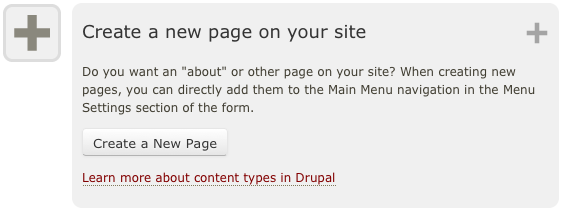
- For some instant gratification, you can create a few pages and get a quick navigation menu started. Look for the "Create a new page on your site" step. When you create a new page, you can add it to the Main Menu navigation in the settings at the bottom of your post.
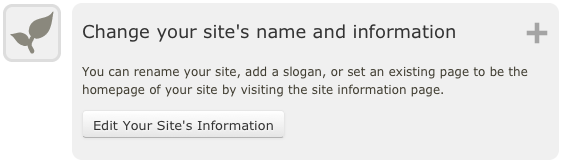
- Put your stamp on your new site by changing the site's name and information. Look for the "Change your site's name and information" step.
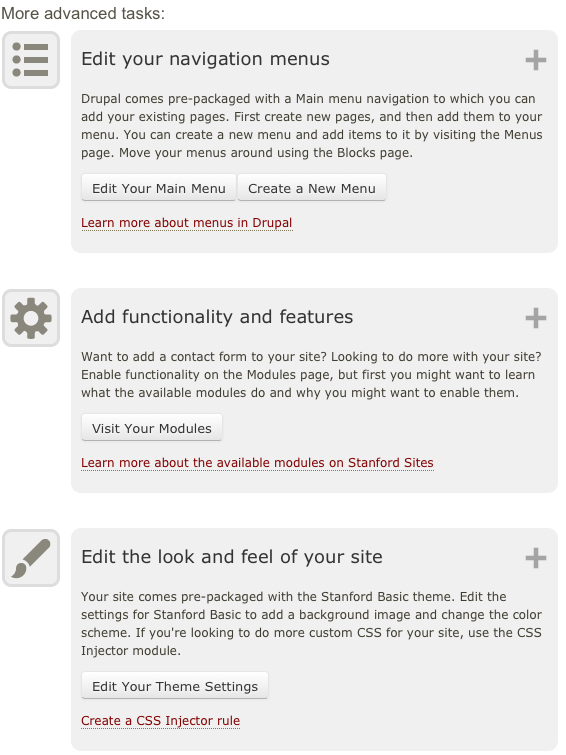
- Drupal has the many more features that allow you to make your site as basic or complex as you need it to be. Look for the "Edit your navigation menus" step in order to change your navigation and menus. Look for "Add functionality and features" to change which modules are enabled on your Drupal site. Look for the "Edit the look and feel" step in order to edit your theme settings (check out Megan's post about how to style your Sites site!).
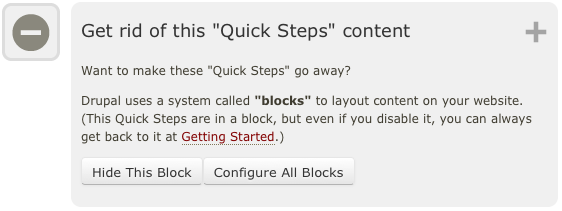
- If you are satisfied with your site's progress and want to hide the Quick Steps from your homepage, look for step "Get rid of this 'Quick Steps' content."
In the next blog post, I'll show you how to attach a document file to your content.