
Have you ever wanted to show only selected information on a content type to anonymous users and more information to authenticated users? It turns out that you can use Display Suite to provide field-level permissions for an entity.
Here's how
Create or Identify a Field
- On an entity such as a content type (node) or bean, identify or create the field to which you will apply the field-level permissions. For this example, I'll use a content type with the field Private Info (i.e., field_private_info).
Enable and Configure Display Suite
- On the Modules page (admin/modules) enable Display Suite Extras, Display Suite Format, and Display Suite UI
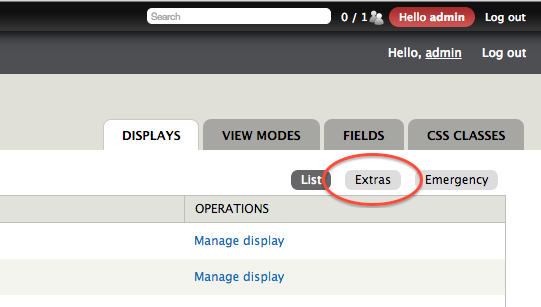
- On the Display Suite administration page (admin/structure/ds ) select the Extras tab
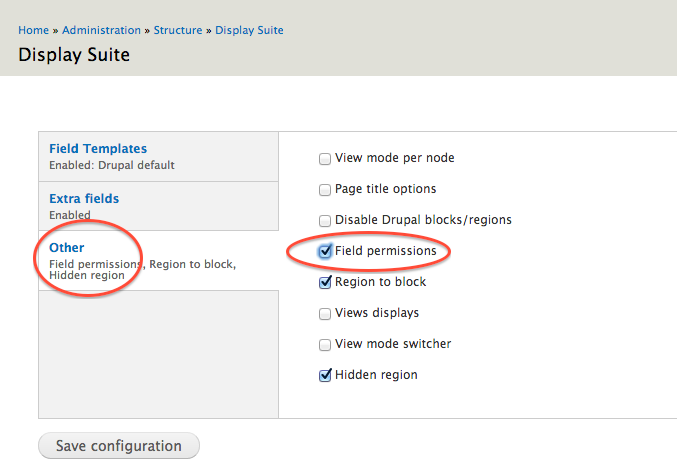
- On Extras page, select the Other tab, check Field Permissions, and click on Save Configuration
- On the Permissions page (admin/people/permissions), enable the Use the Display Suite code text format for your role

Create a Code Field
In this step you will create a Code Field that can display the contents of your original field and use field-level permissions.
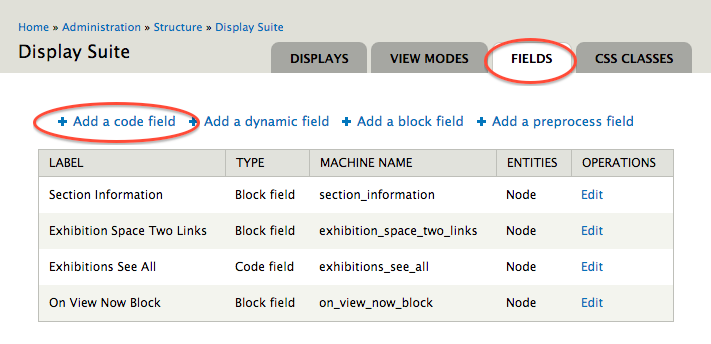
- On the Display Suite Fields page (admin/structure/ds/fields) select Add a code field
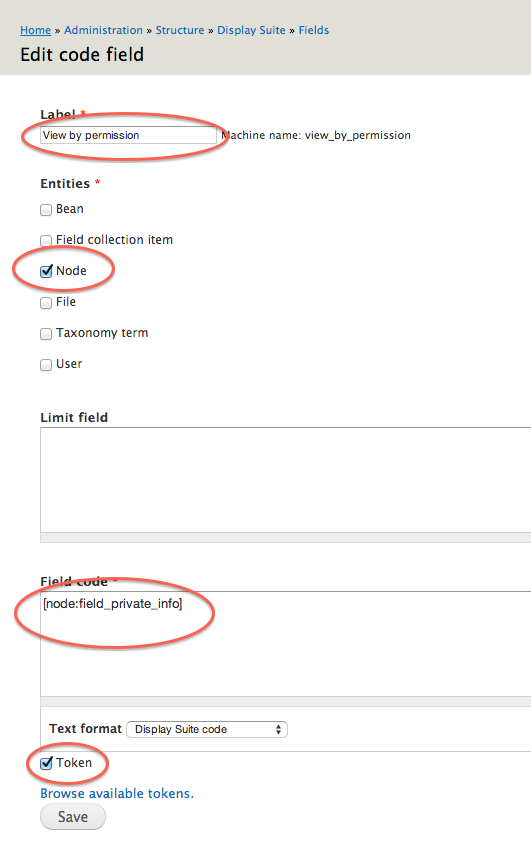
- Add the Code Field information for your field:
- Give it a Label (e.g., View by permission)
- Select which Entities can use this code field (e.g., Node)
- Select Token
- Click on Browse Available Tokens
- For the Field code, click on token
- Click next on Browse Available Tokens
- In the pop-up window scroll until you find the relevant token. In this example, click on Nodes, then click on Private Info (e.g., [node:field_private_info])
- Close the Tokens pop-up window
- Click on Save
- On the Permissions page (admin/people/permissions) select the permissions for the Code Field
- Click on Save permissions

Enable Display Suite for Your Content Type
In order for you to access the new code field, you'll need to enable Display Suite for your content type. To do this, you'll need to select a default layout.
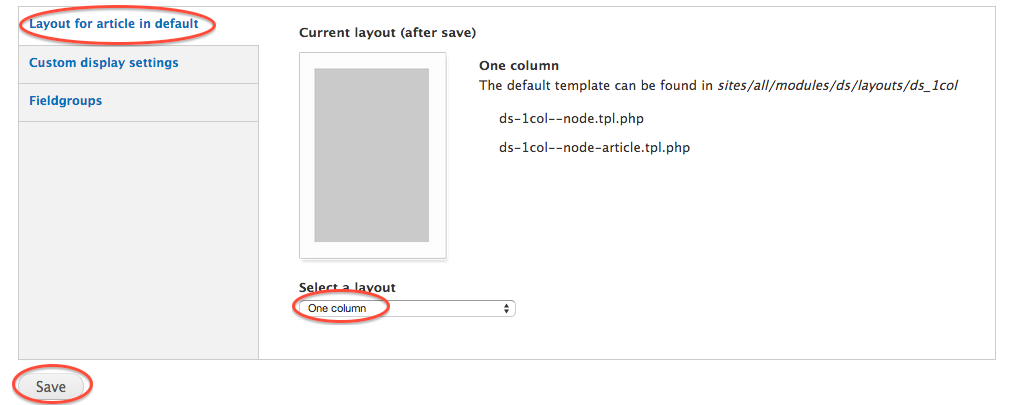
- Navigate to the content type Manage Display form (admin/structure/types/manage/your_content_type/display)
- In the vertical tabs at the bottom of the form select Layout for your content type in default
- Select a layout from the dropdown menu
- Click on Save
Display the Code Field
With Display Suite enabled for your content type, your new field should appear in the Disabled section on the Manage Display page for your content type. In this step you will allow the newly minted dynamic field to display.
- Navigate to the Manage Display form for your content type (admin/structure/types/manage/your_content_type/display)
- Scroll down until you see the new code field. It should appear in the Disabled section
- Hover over the "+" and move the field to a display region such as "Content"
- Select Save
Test it out!
Add data to the new field and view the entity with both the permission to view the field and without permission such as anonymous.
Troubleshooting
For more information
Acknowledgements
Thanks to Shea McKinney for showing this to me, and to Marion Marquardt for encoraging me.