Skip to content Skip to navigation

Site Retired

As of May, 2022, this website is no longer updated and has been replaced with a static copy.

John Bickar's Blog Posts

Photo of John Bickar Posted by John Bickar on Tuesday, September 24, 2013 - 9:23am

Today we're highlighting a very simple but useful module, Module Filter. This module makes the module overview page at admin/modules much more user friendly by grouping modules into categories, and mimicking the "Find on this page" (e.g., Ctrl-F) functionality of web browsers.

This module is available on Stanford Sites, or you can download it from the Module Filter Project page at https://drupal.org/project/module_filter.

To Use

  1. Enable the module at admin/modules:
    Screenshot of the modules page with Module Filter selected
  2. Once enabled, reload the page at admin modules.
  3. Start typing to filter the list by any text string,
    Screenshot of the modules page with Module Filter enabled, showing filtering by entering text
  4. And/or choose from the tabs on the left to filter by module groups
    Screenshot of the modules page with Module Filter enabled, showing filtering by selecting a tab
Posted in:
Photo of John Bickar Posted by John Bickar on Monday, September 9, 2013 - 9:03am

Getting accurate and timely help starts with crafting a good help request. Here are a few tips that you can use.

As part of IT Services, Stanford Web Services provides support for the Stanford Sites hosting platform. Unfortunately, sometimes things do go wrong, or break, and we encourage members of the Stanford community to submit help requests via Service Now. There are a few things that you can do to help us help you (and this advice can be generally applicable to any tech support service, not just HelpSU).

The Five Ws

Journalists use the "Five Ws" for information-gathering.

  • Who are you?
  • What happened? What were you doing at the time? What was the expected result?
  • When did it take place? (and how often?)
  • Where is it (e.g., a URL)? Where were you when it happened?
  • Why did it happen? (You may not know the answer to this, but then again, sometimes you might.)
  • How can someone else reproduce the problem?

A Good Example

We recently received this help request via HelpSU:

Description: I got this email after applying for a sites-dev site, but https://people-dev.stanford.edu/jdoe gives me a 500 Internal Server Error.


****************** DO NOT REPLY TO THIS AUTOMATED MESSAGE ******************

Your sites-dev.stanford.edu site is now enabled on the servers.  You can
go to the following URL to start using:

    https://people-dev.stanford.edu/jdoe

If you have any problems with this URL, please submit a HelpSU request at:

    http://helpsu.stanford.edu/

Please do not reply to this automated message since all replies will be
discarded.

****************** DO NOT REPLY TO THIS AUTOMATED MESSAGE ******************

What's good about this request?

  1. It contains a URL ("https://people-dev.stanford.edu/jdoe")
  2. It contains the text of the error message ("500 Internal Server Error")
  3. It contains the text of the email that was sent

With this information, I (your friendly helper) can take the following steps:

  1. Go to the affected URL
  2. Reproduce the error
  3. Fix it!

Taking it to Eleven

Adding a screenshot, when possible, makes your help request even more awesome, and people will be singing your praises from on high. (Note: you cannot add screenshots directly in the HelpSU request form, but you can do so by replying to the automated confirmation email that you get from HelpSU once you've submitted your request. You also can include screenshots when emailing user lists such as drupallers@lists.stanford.edu, wordpress-users@lists.stanford.edu, etc.)

Screenshot showing drupal.org with an

Posted in:
Photo of John Bickar Posted by John Bickar on Monday, August 26, 2013 - 4:31pm

An update to the new modules for July, 2013: Module updates to Stanford Sites were not fully completed during the maintenance windows of the week of August 5th. Sites on people.stanford.edu were updated during regular maintenance windows in the week of August 5th. Department and group sites on Stanford Sites will receive the following updated modules on August 27th and 28th.

Drupal 6

Drupal 7

Several modules included in this round of additions (including OpenLayers, Stanford WYSIWYG, Webform, and WYSIWYG Filter) are due to suggestions from site owners, so please keep those suggestions coming!

If you have questions regarding these updates or your Stanford Sites website, or suggestions for additional modules, please submit a HelpSU request, and the Stanford Web Services team will respond as soon as possible.

Posted in:
Photo of John Bickar Posted by John Bickar on Friday, August 23, 2013 - 9:47am

What's better, fast or slow? That's right. Fast. There are a couple of ways you can tune the performance of your Drupal site to decrease page load times. Below are two simple things you can do today.

Drupal Core Performance Settings

  1. Go to admin/config/development/performance (Drupal 7)
  2. Check all the checkboxes:
    • Cache pages for anonymous users
    • Cache blocks
    • Compress cached pages.
    • Aggregate and compress CSS files.
    • Aggregate JavaScript files.
  3. Choose an appropriate minimum cache lifetime. If content on your site does not change very frequently, you can safely set this to the maximum of 1 day.
  4. Typically you would set the expiration of cached pages setting to 1 day also (or whatever you set minimum cache lifetime to). This setting applies to browser caches, for example.

Screenshot of the Drupal core performance configuration screen

Views Caching

On the edit page for each View, under the "Other" section, there is a setting for Caching. You can set separate values for the Query Results and the Rendered Output. If your site content does not change very frequently, you can set that at a long duration, such as 6 days.
Screenshot of the Views edit page with the caching setting highlighted

Screenshot of the time-based caching setting for Views

Screenshot showing a cache lifetime of 6 days for Views query results and rendered output

These two simple steps will improve page load times for anonymous users dramatically.

What Happened to My Changes?

The tradeoff with an aggressive caching configuration is that improved performance comes at the expense of changes going "live" instantaneously. I.e., if you make a change to a node, or a View, it is possible that anonymous users may still see the old, "cached" version.

You can clear all the caches by clicking the "Clear all caches" button at admin/config/development/performance, or under the Home icon in the black Administration Menu:

Screenshot showing how to clear Drupal caches via Drupal core

Screenshot showing how to clear Drupal caches via the Administration Menu

Further Reading

Posted in:
Photo of John Bickar Posted by John Bickar on Friday, July 26, 2013 - 1:57pm

Update, August 5: Module updates to Stanford Sites were not fully completed during the maintenance windows of the week of July 29th. Instead, sites on people.stanford.edu will continue to be updated during regular maintenance windows in the week of August 5th. Department and group sites on Stanford Sites will receive the updates at a later date in August.


During the week of July 29th, 2013, IT Services will be adding the following modules to all sites on Stanford Sites:

Drupal 6

Drupal 7

Personal sites on people.stanford.edu will receive these updates on July 30th, and group/department sites on sites.stanford.edu will receive the updates on August 1st.

Several modules included in this round of additions (including OpenLayers, Stanford WYSIWYG, Webform, and WYSIWYG Filter) are due to suggestions from site owners, so please keep those suggestions coming!

If you have questions regarding these updates or your Stanford Sites website, or suggestions for additional modules, please submit a HelpSU request, and the Stanford Web Services team will respond as soon as possible.

Posted in:
Photo of John Bickar Posted by John Bickar on Monday, July 1, 2013 - 9:03am

One of the common requests that we receive about the list of included modules in Stanford Sites is if we can add the Panels module. I would like to outline our rationale for not including Panels in Stanford Sites, and describe the alternative approaches and methods you can use to create unique, custom layouts on your website.

What Is Panels?

"The Panels module allows a site administrator to create customized layouts for multiple uses. At its core it is a drag and drop content manager that lets you visually design a layout and place content within that layout. Integration with other systems allows you to create nodes that use this, landing pages that use this, and even override system pages such as taxonomy and the node page so that you can customize the layout of your site with very fine grained permissions."

(from the drupal.org project page for Panels).

Panels is a very robust and powerful module that has deep integration with modules such as Views, Features, Chaos Tools, and Taxonomy. It has a sophisticated caching mechanism, a powerful in-place editor (IPE), and a rich ecosystem of add-on modules. There even is an entire distribution built on Panels.

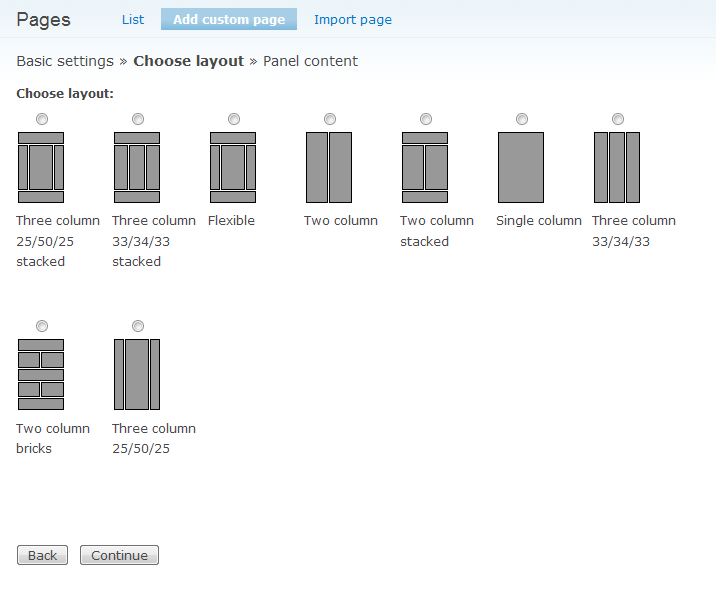
Screenshot of the Panels module's user interface for choosing different page layouts

(Screenshot taken from Earl Miles's blog.)

Planning for Drupal 7 on Stanford Sites

Stanford Sites launched in Fall, 2011, with Drupal 6 as the only offering. In June, 2012, IT Services staff did a survey of the various page layout approaches available in Drupal 7. We included Panels in this survey, as well as a competing approach, that of Context and Display Suite. We also reviewed several other modules that attempted to address layout in various ways, including BEAN, Boxes, Delta, and Organic Groups.

Pain Points in Drupal 6

We began by listing our "pain points" in Drupal 6:

  • Blocks are "dumb" - they have no knowledge of what content is at a given path
  • Revisioning: blocks do not track revisions
  • Blocks don't have instances (i.e., cannot be placed multiple times)
  • Cannot assign id or class to blocks (only to divs within blocks)
  • Writing PHP, HTML, CSS – many users do not want to do this, and should not have to

Themes and Regions

Stanford Web Services (SWS) uses the Open Framework theme (and subthemes) extensively. Our responsive web design approach is based on placing blocks in regions within that theme, and dictating how many columns blocks will span. Since blocks and regions are native to Drupal and a relatively simple concept for people new to Drupal to learn, our themes take advantage of a user's familiarity with blocks and regions to enable quickly building responsive sites.

Diagram of the responsive flow of blocks and regions in the Open Framework theme

Context and Display Suite

The Context/Display Suite approach builds on our core responsive theme strategy of using blocks and regions, and offers solutions to the majority of our pain points without introducing unnecessary complexity:

  • Context solves the "blocks are dumb" and the "multiple instances" issues by allowing you to create "layout" configurations (for use site-wide or for specific pages/paths) in which blocks can be reused and placed in different regions in each layout
  • Display Suite also allows creation of custom layouts and view modes, and provides the ability to create blocks out of node fields (thus enhancing our blocks/regions strategy)
  • The Block Class module is a lightweight way to solve adding classes to blocks and allows us to take advantage of Open Framework's responsive grid system (e.g. "span6" gets you a block of 50% width)
  • Context and Display Suite have Features integration, which allows us to export layout and configuration (and track in a VCS)

Panels

The Panels/Panopoly approach is compelling, and offers a rich set of end-user tools. However, several factors contribute to our decision not to include it in Stanford Sites at this point:

  • There is a significant learning curve to Panels. With robustness and flexibility come complexity, and this presented an obstacle to launching the Drupal 7 environment quickly, and an impediment to self-service users of Stanford Sites.
  • It is an "all-or-nothing" option, in that Panels completely takes over the display of the page
  • Although improvements have been made to the administrative UI since previous versions of Panels (particularly the Panels in-place editor [IPE]), it is still a very complex interface
  • The responsive benefits of Panels are offset by SWS's heavy use of our base theme, Open Framework and its responsive block regions

In summary, we have taken a core "blocks and regions" approach to layout, and found solutions in a combination of modules: Context, Display Suite, and Block Class. This allows for flexibility and simple layout implementation without the learning curve or overhead of Panels.

Additional Resources

Photo of John Bickar Posted by John Bickar on Tuesday, May 28, 2013 - 9:29am

On Tuesday, May 28th, and Thursday, May 30th, 2013, IT Services will perform quarterly software updates on Stanford Sites.

Schedule

Tuesday, May 28th, 5-8PM: updates performed on personal websites hosted on people.stanford.edu.

Thursday, May 30th, 4-6AM: updates performed on group and department websites hosted on sites.stanford.edu.

Updates will include:

Drupal Security Updates

Drupal 6

  • drupal-6.28
  • date-6.x-2.9
  • email-6.x-1.4
  • ctools-6.x-1.10
  • nodewords-6.x-1.14
  • print-6.x-1.18
  • taxonomy_manager-6.x-2.3
  • webform-6.x-3.18

Hosting Environment

  • Change deployment architecture to git-based configuration
  • Move fastcgi to external sockets
Posted in:
Photo of John Bickar Posted by John Bickar on Monday, May 20, 2013 - 10:25am

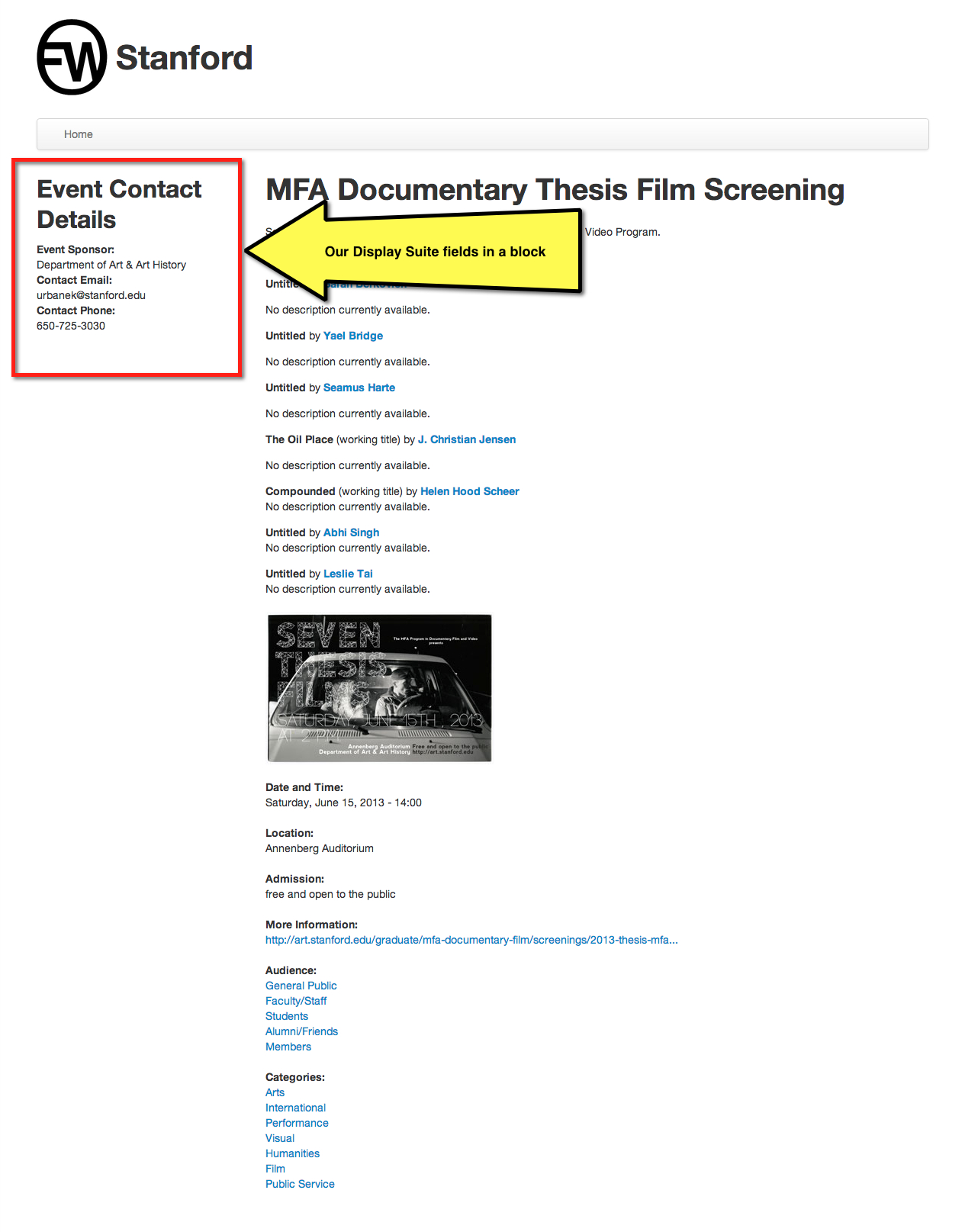
Have you ever looked at a page layout and thought, "Hm, that sure is one long list of fields. It would be nice to be able to place some of that information in a sidebar (or in the footer, etc.)"

In this example, we want to move some of the "Contact Information" fields of an Event node into the first sidebar.

You can do exactly that with the Display Suite Extras module, which is available on Stanford Sites. Here's how.

How the Page Looks to Begin With

Screenshot of an Event node

How to Change It

  1. Enable the Display Suite and Display Suite Extras modules
    Screenshot of the modules page, showing Display Suite and Display Suite Extras modules checked
  2. Enable "Region to Block" at admin/structure/ds/list/extras (in the "Other" tab)
    Screenshot of enabling the Region to Block module
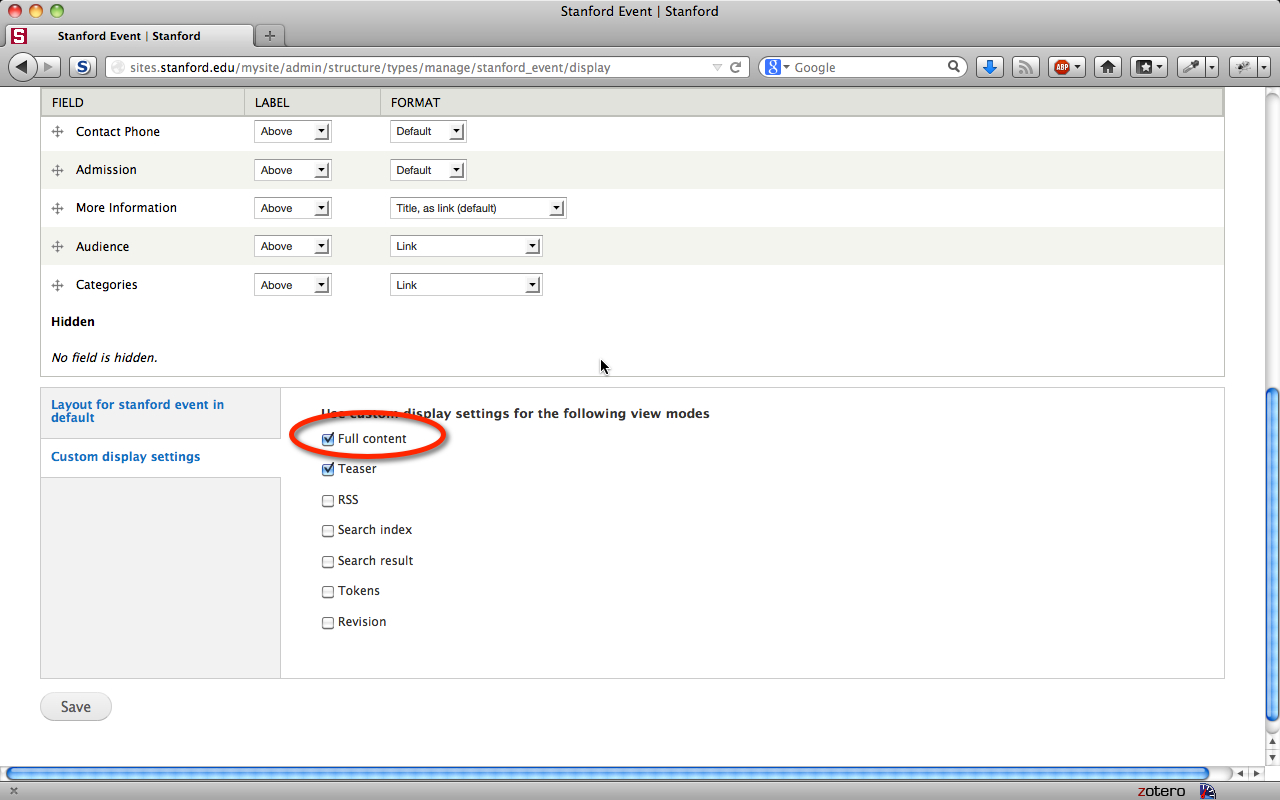
  3. Enable a custom display setting for the Full Content view mode at admin/structure/types/manage/(content_type)/display
    Screenshot showing how to enable a custom display setting for the full content view mode
  4. Edit the display settings for the Full Content view mode at admin/structure/types/manage/(content_type)/display/full
  5. Choose the "One Column" layout and save
    Screenshot showing how to enable a one-column custom layout for the Full Content view mode
  6. Click the "Block Regions" tab and add a new region. Name it a semantic way so that you can find it in the Context or Blocks overview page
    Screenshot of creating a custom block region for your Full Content view mode
  7. Add your fields to that DS region
    Screenshot showing moving several fields to the block region
  8. Create a Context for that content type that places that block in the appropriate region
    Screenshot of the Context UI, showing how to place the block on Event nodes using Context
    (Note: You also can place the block using Drupal's core block system. Context is not required.)

The Final Product

Screenshot of the final node display, with the contact information in the first sidebar

The Tricky Parts

  • You have to choose a view mode other than Default
  • You have to choose a layout for the view mode in order to get the "block regions" tab to appear

References

Posted in:
Photo of John Bickar Posted by John Bickar on Friday, May 3, 2013 - 10:28am

On Tuesday, May 7th, 2013, IT Services will perform quarterly software updates on Stanford Sites. Updates will include:

Drupal Security Updates

Drupal 7

  • drupal-7.19

Drupal 6

  • drupal-6.28
  • date-6.x-2.9
  • email-6.x-1.4
  • ctools-6.x-1.10
  • nodewords-6.x-1.14
  • print-6.x-1.18
  • taxonomy_manager-6.x-2.3
  • webform-6.x-3.18

These updates are "Part Two" of the April quarterly updates.

(Note: for performance reasons, the Drupal 6 updates were split out and scheduled for a later date.)

Posted in:
Photo of John Bickar Posted by John Bickar on Wednesday, April 24, 2013 - 6:33am

On Tuesday, April 23rd, 2013, IT Services performed quarterly software updates on Stanford Sites. Updates included:

Drupal Security Updates

Drupal 7

  • ctools-7.x-1.2
  • email-7.x-1.2
  • token-7.x-1.5
  • context-7.x-3.0-beta6
  • ds-7.x-2.2
  • feeds-7.x-2.0-alpha7
  • services-7.x-3.3
  • taxonomy_manager-7.x-1.0-rc2
  • stanford_sites_helper-7.x-1.0-beta5

Other Updates

  • Improvements to the help text for PTS and workgroups on the request form
  • Improvements to the help text for dev sites on the request form
Posted in:

Pages

Subscribe to John Bickar's Blog Posts